> For the complete documentation index, see [llms.txt](https://developers.chathive.app/llms.txt). Markdown versions of documentation pages are available by appending `.md` to page URLs; this page is available as [Markdown](https://developers.chathive.app/sdk/custom-tool-events.md).
# Custom tool events
Your AI agent can emit custom events to the SDK whenever it determines an action needs to be handled. By creating a custom tool, you can give your agent the ability to trigger these events.
With the event emitter you can give your AI agent the tools to interact with the website it's embedded on. Give it the ability to navigate to open popups, navigate to product details or even open your dedicated live chat.
## Create event tool
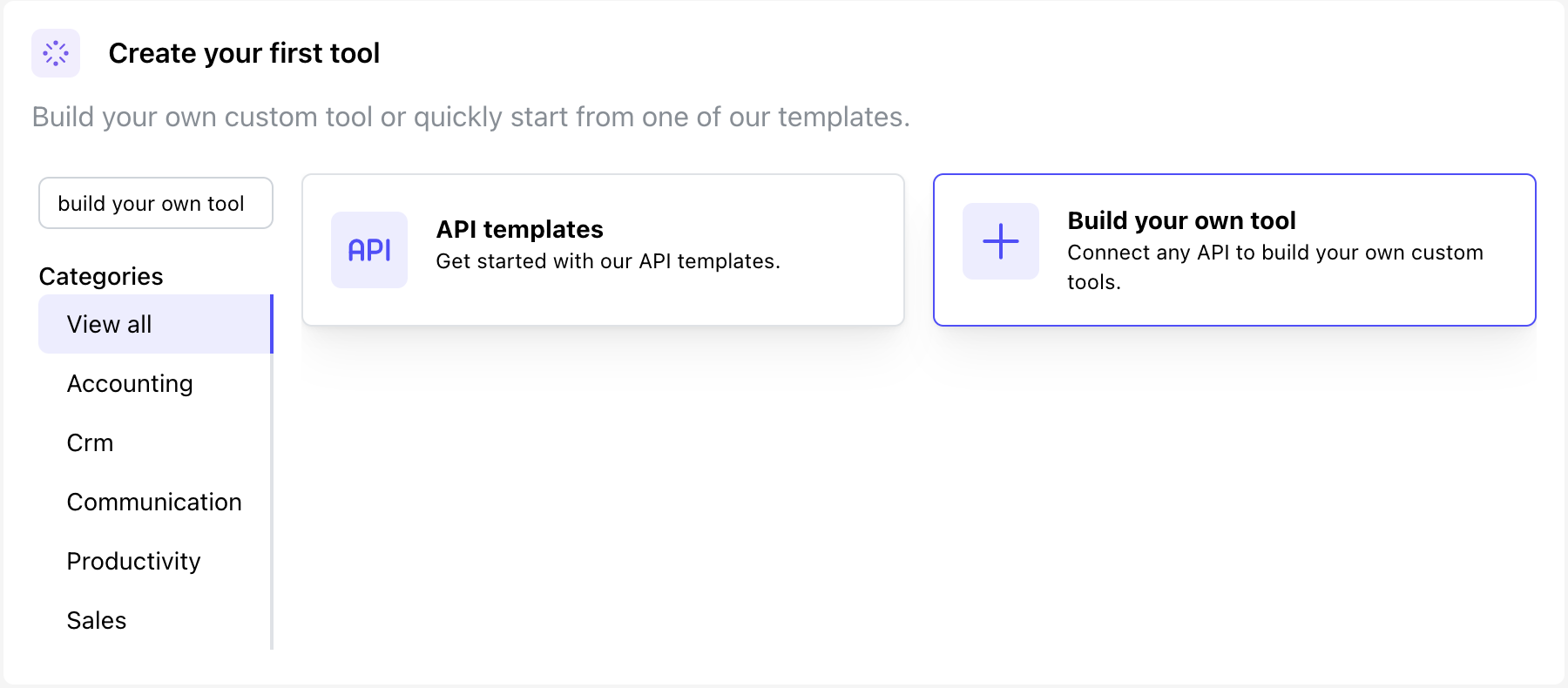
* In your project's **Tools** section, select **Create Tool**.
* Choose `build your own tool`
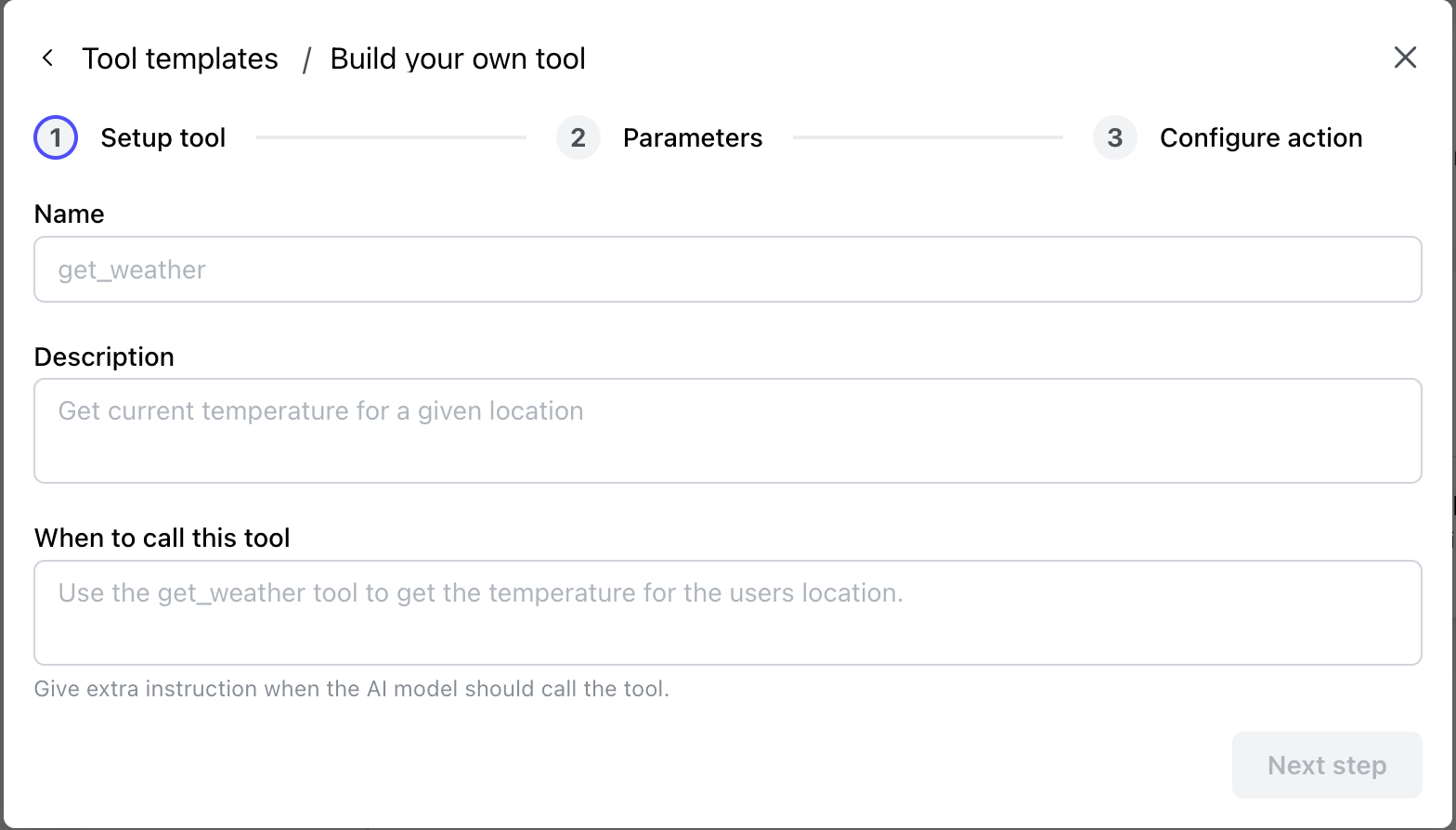
### Tool setup
In this step, you’ll provide the core details of your tool:
* **Name**: A unique name (within the project). This name will also be used when the event is emitted, allowing you to identify which event was triggered.
* **Description**: A short explanation of the tool’s purpose.
* **When to Call Instructions**: Guidance for the agent on when it should call the tool, giving it the context needed to use the tool correctly.
### Tool parameters
in the [parameters](/tools/parameters.md) section you can use JSON schema to define the data your agent should request from the user before emitting the event.
* If parameters are defined, the agent will prompt the user for that data.
* If left empty, no additional user input will be required.
All defined parameters will be included in the emitted event.
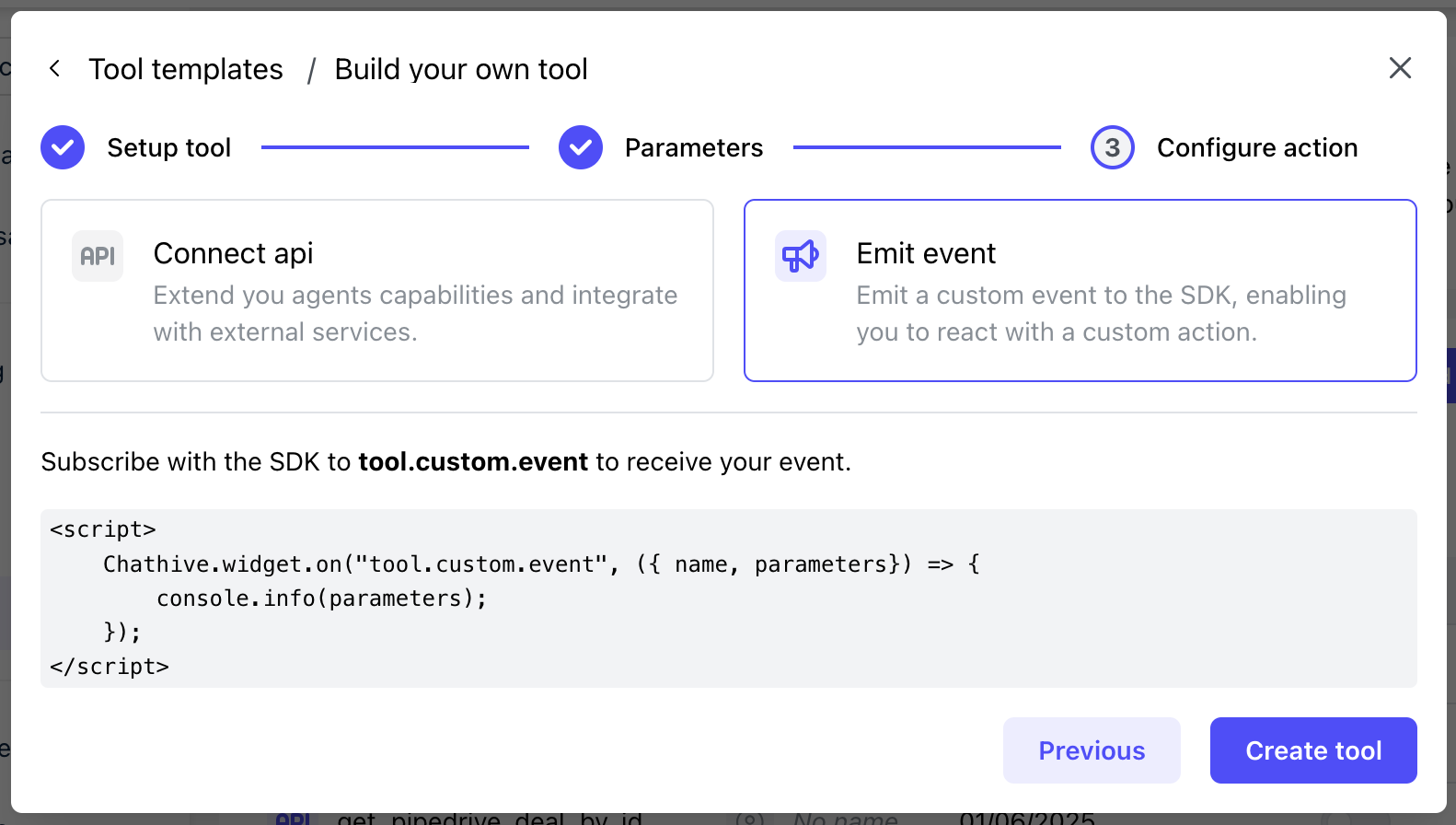
### Configure action
After setting up the tool and its parameters:
1. Select **Emit Event** as the action type.
2. Save your tool.
Your agent can now emit this custom event to your SDK.
## Receive event
How you listen for events may vary slightly depending on whether you’re using the [chatbot](/sdk/chatbot/events.md) or [AI from](/sdk/ai-form/events.md) SDK, but the process is essentially the same.
Once the SDK is initialized, create a subscription to `tool.custom.event`.\
Each time the event is emitted, your callback function will receive the following data:
* **Name**: The unique tool name you defined.
* **Parameters**: All user-provided parameters plus system parameters.
* **Context**: The current conversation context.
* **Customer**: Customer information related to the conversation.
* **Project**: The associated project name.
* **Organization**: The associated organization name.
* **Conversation**: Conversation details, including messages and transcriptions.
```javascript
Chathive.widget.on("tool.custom.event", ({ name, parameters }) => {
console.log("Event name:", name);
console.log("Parameters:", parameters);
});
```